What you can do
- Music production
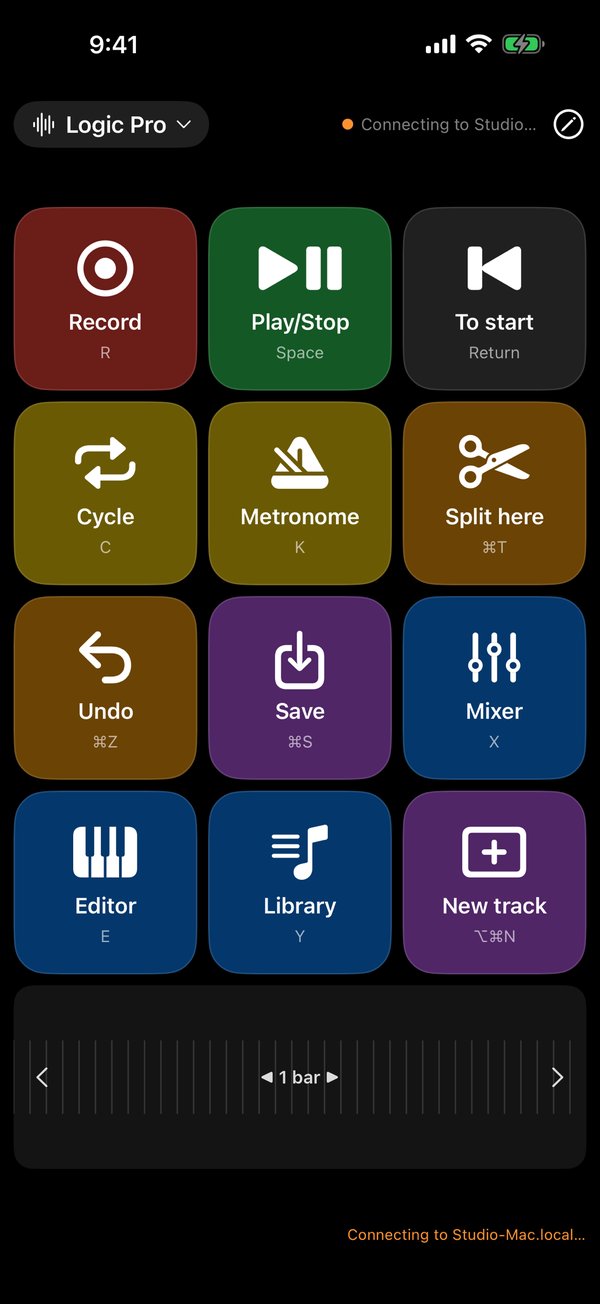
Use buttons for play, record, split and mixer controls. Pro adds MIDI controller faders. Logic Pro, GarageBand and more. - Image editing & illustration
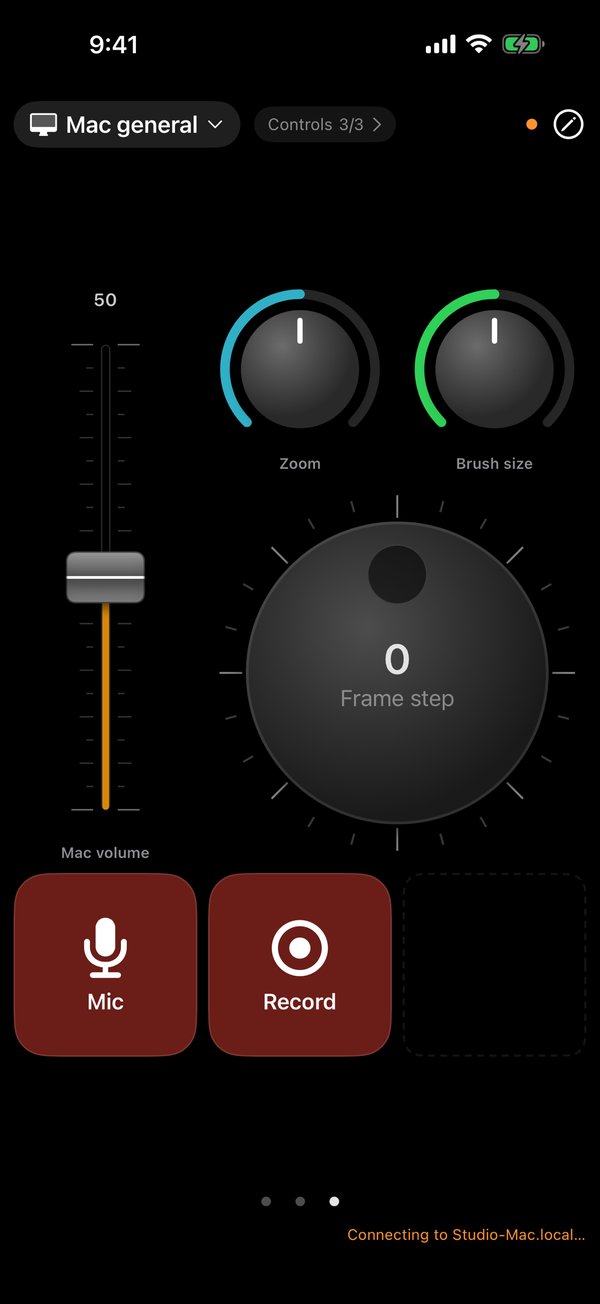
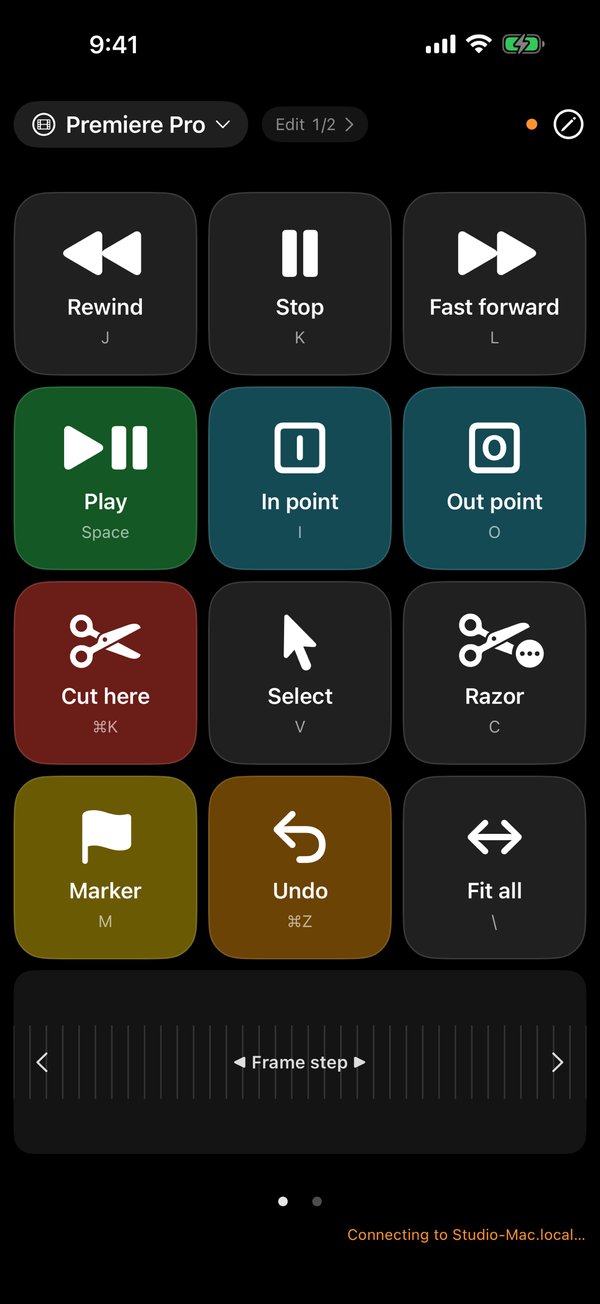
Adjust brush size, zoom and undo with knobs and buttons. Photoshop, Illustrator and more. - Video editing
Step through frames with a jog dial; cut and add markers with buttons. Final Cut Pro, DaVinci Resolve and more. - OBS streaming
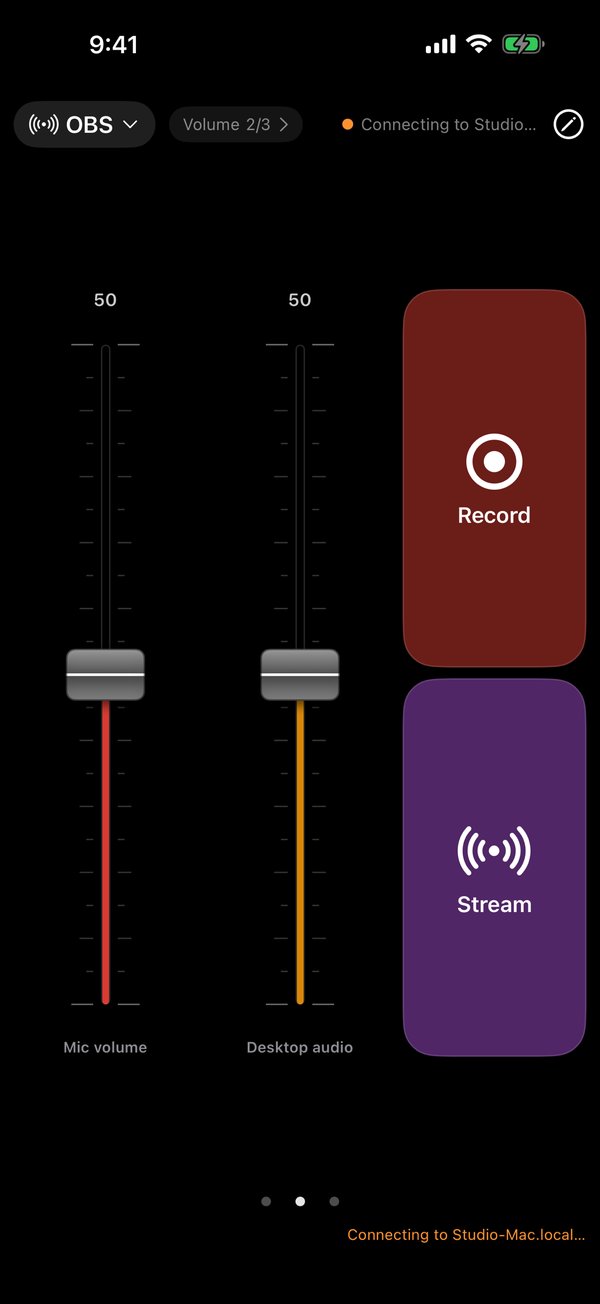
Control recording, streaming, scenes, mute and volume. - Everyday tasks
Copy, paste, take screenshots, open apps and type text snippets.
App screens
Getting started
Left-Hand Pad works with two apps: the iPhone/iPad app (the remote) and the receiver app on your Mac. Both are free.
- Install Left-Hand Pad on your iPhone or iPad from the App Store.
Get it on the App Store (iOS 17 or later) - Install and launch the free receiver app on your Mac (download below).
- Connect your iPhone or iPad and Mac to the same Wi‑Fi. The first time, enter the 4-digit code shown on your Mac, then turn on Accessibility permission for LeftPadReceiver in your Mac’s System Settings. Your buttons are ready.
Download the free Mac receiver (macOS 14 or later)
Left-Hand Pad Receiver 1.0 (dmg, about 5.9 MB), notarized by Apple. Open the dmg, move the app to Applications and launch it.
Requirements
- iPhone / iPad: iOS 17 or later
- Mac: macOS 14 or later, with the receiver app
- Both devices on the same Wi‑Fi network
Free and Pro
Free
A 3×5 grid of buttons is free.
Pro
Pro unlocks faders, knobs, larger layouts, automatic scene switching, OBS integration and DAW control. Choose a one-time purchase or monthly subscription.